You decide how much messaging is enough.
Set a cap for a single app or your entire organization, across every channel at once or channel by channel: push, in-app, and inbox. Every campaign respects it automatically.
One set of limits, every campaign.
Until now, each campaign carried its own frequency cap, and nothing coordinated across campaigns. Three campaigns that each allowed one message could still reach the same device three times in one session.
Frequency Caps adds organization-wide limits that every campaign checks before it sends. Per-channel caps work alongside the global cap, so a device has to satisfy every limit you switch on. You set it once, and it holds across all of them.
Enforcement is per device, so the limit follows the device your message would reach.
Turning capping off keeps your rules, so you can switch it back on without rebuilding anything.
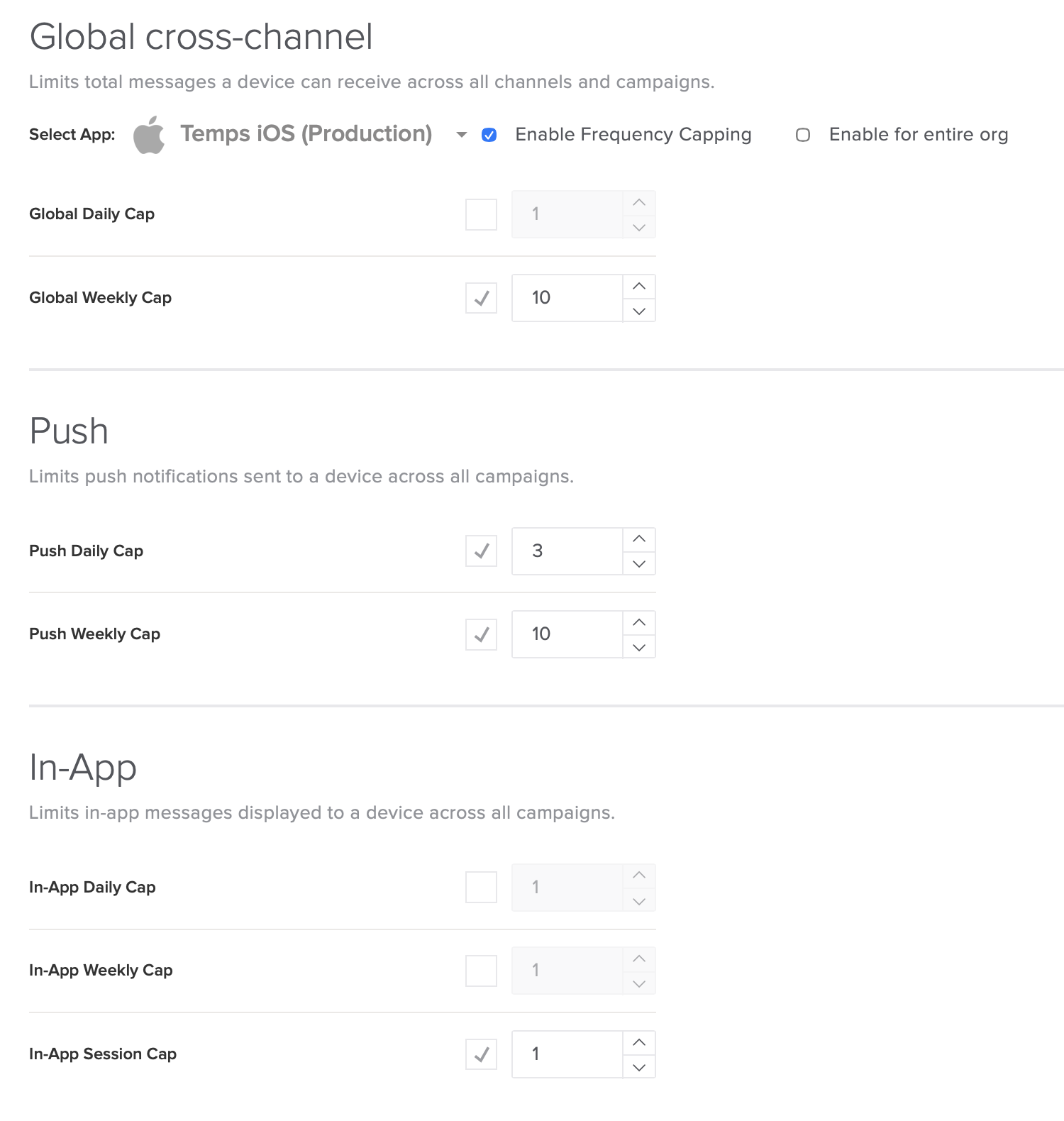
Three steps.
Open the settings page
Settings, then Frequency Caps. Requires the app settings permission.
Set the caps you want
Choose how many messages a device can receive per day or per week, plus a per-session limit for in-app.
Save, or apply org-wide
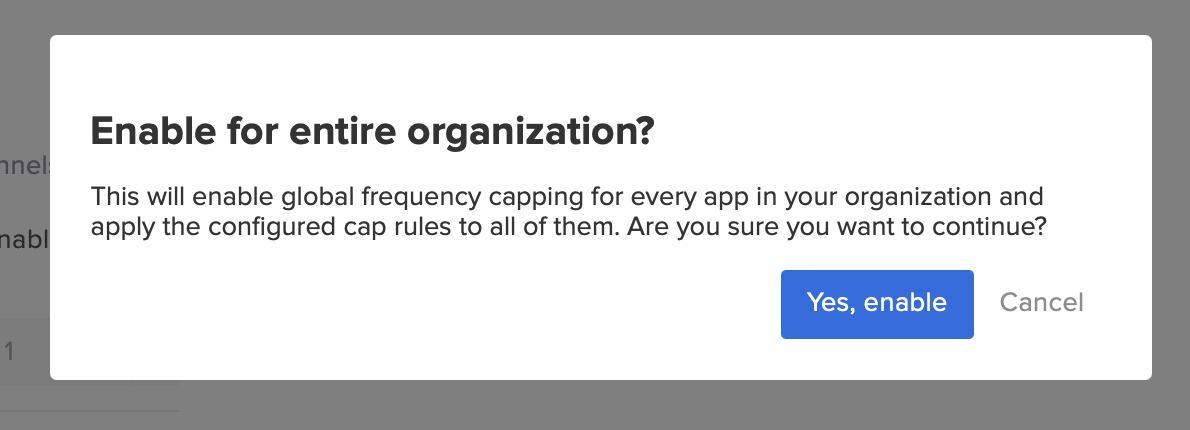
The cap covers the app, or check "Enable for entire org" to apply it to every app in your organization.
You stay in control of the exceptions.
Some messages have to reach the device no matter what, a security alert or an account notice. Flag that campaign to ignore the cap on its scheduling page, and it sends regardless.
Everything else respects the limit you set.
- ✓A global cap plus per-channel caps for push, in-app, and inbox. Daily or weekly, with a per-session limit for in-app.
- ✓Campaign override to let a critical message ignore the cap.
- ✓Org-wide apply from one checkbox.
- ✓Safe rollout. Campaigns already running when you switch capping on are exempt, so nothing gets crowded out on day one.
What you're about to ask us.
Do I need to change anything about the campaigns I'm already running?
No. The cap layers on top of what you already have. Every campaign checks it automatically once it's set, nothing to reconfigure campaign by campaign.
What happens to a message that would put a device over the limit?
It's held back. An in-app or inbox campaign stays eligible and can deliver on a later day while it's still running. A held push is not resent; its send window has passed.
Can my channel caps add up to more than my global cap?
Yes. Every message is checked against its channel cap and the global cap, and the most restrictive limit is the one that binds. A global cap of 5 with a push cap of 10 still means 5 messages total.
Can a message skip the cap when it has to reach someone regardless?
Yes. Flag that campaign to ignore the cap from its scheduling page: a security alert or an account notice still gets through. The campaign's summary page shows whether the cap applies, so you can confirm before launch.
How does this work with the frequency cap on an individual campaign?
Both apply. The campaign-level cap governs its own campaign; these govern everything at once. A message has to satisfy both.
Is the limit per person, or per device?
Per device. Someone on two devices is tracked separately on each one.
Do I set this app by app, or for my whole account?
Either. Set it for one app, or check "Enable for entire org" and the same limit applies everywhere at once. Org-wide overwrites any per-app values you set earlier, so use it when every app should share the same limits.
Who can access these settings?
Anyone with the app settings permission, from account settings. That is usually an admin.
What happens to campaigns I'm already running when I switch this on?
They are exempt. Campaigns that started before you enabled capping do not consume your new limits, so nothing you already have running gets crowded out.
What about a message already sitting in someone's inbox?
It stays. Enabling a cap never clears something a user already has. And if someone opens the same inbox message more than once, it only counts the first time.
When can I turn this on?
It's generally available for every account. Open Settings, then Frequency Caps, and set your first cap. Nothing is limited until you enable one.
Set your cap today.
Open Settings, then Frequency Caps, and set a limit in under two minutes.